
Advertisement
 Sponsored
Most couples download an online wedding checklist on day one of the engagement, tick a few boxes, then forget about it for three months. The list is not the problem, the way it is being used is. A good online checklist is not a long PDF you scroll through occasionally. It is a small, filtered view of what matters this week, who owns it, and when it needs to be done.
This guide is for couples who already know they want a digital checklist. The question is no longer which one to download but how to work with it across phones, tablets, laptops, and a partner who lives on Slack. We will cover chunking by months-out, tagging by owner, wiring in notifications, combining the checklist with budget and guest list, and why a synced planning hub almost always beats a Google Sheet when both of you travel.
Plan Your Event
One platform for every occasion: weddings, baptisms, corporate events and private parties.
Stop treating an online checklist like a PDF
The first mental shift: an online checklist is a live filter, not a document. A PDF shows everything at once. A live checklist hides 90% of the list 90% of the time. You only see "due this week", "due this month", or "assigned to me". The rest sits quietly until it is relevant.
Couples who treat the checklist like a PDF tend to print it, duplicate it into Google Sheets to sort, and bookmark it in a browser they never open on their phone. None of that is wrong on its own. The problem is that none of it filters.
Pro tip: On day one, mark every task "Later" except the ones for the current month. Hide everything else. If the tool has no snooze, use tags.
If you are still picking a list, start with our guide to the best free wedding planning checklists. This article assumes you have one and want to use it well.
Chunk by month: the 12 / 9 / 6 / 3 / 1 framework
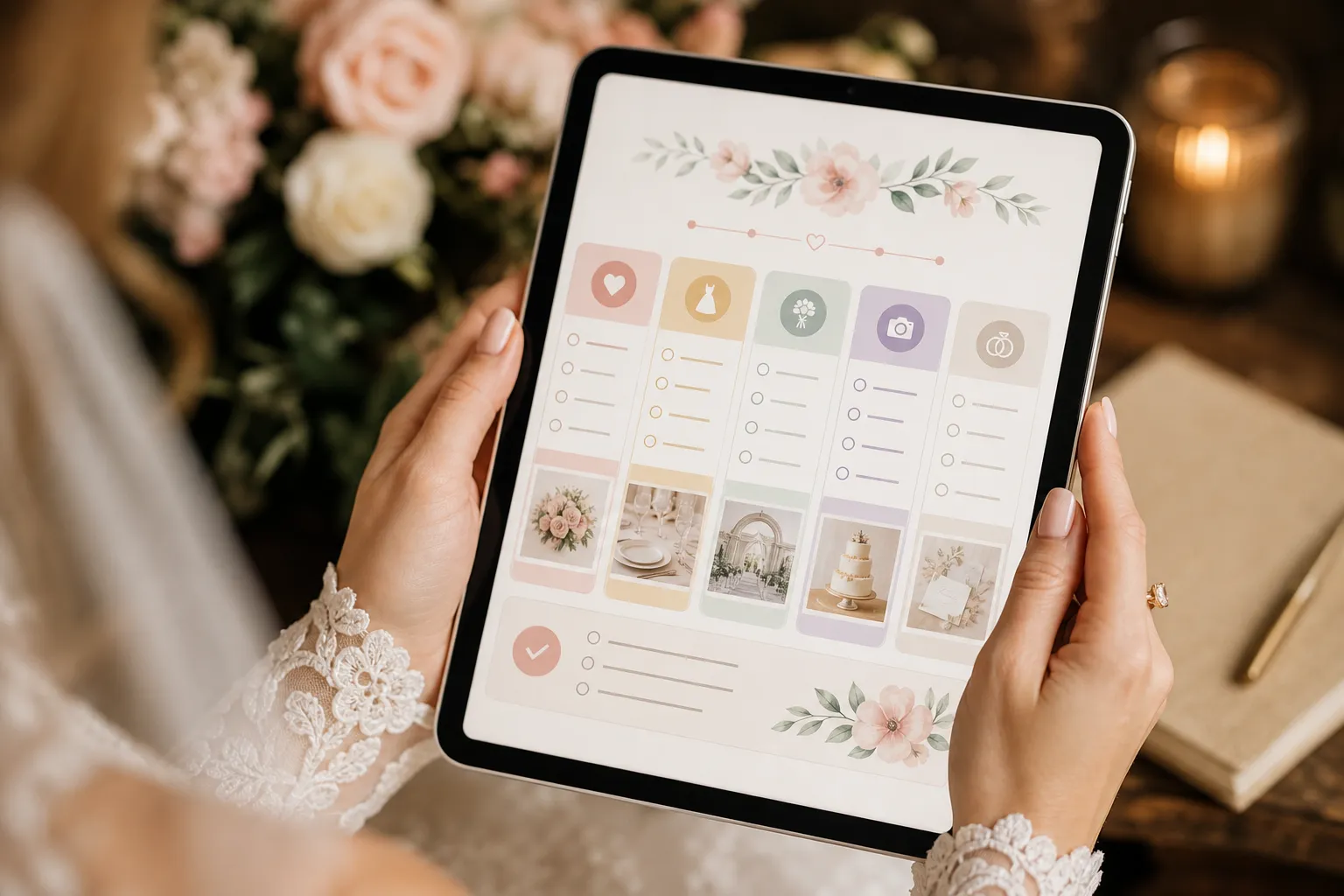
Online checklists fail because couples see all 180 tasks at once and freeze. Chunking by months-out fixes that. Decide, in advance, what the list looks like at each milestone, and your weekly view is just the next chunk. Adjust the months if your engagement is shorter, the order matters more than the timing.
12 months out: foundation
- Set a working budget range and a non-negotiable guest count band (e.g. 80 to 120).
- Draft a rough guest list by family, names, not addresses.
- Decide on city, region, or destination.
- Tour 3 to 5 venues and book one.
- Lock the date and any backup ceremony slot.
- Book the photographer (the second hardest vendor to find late).
- Open a shared online checklist and invite your partner.
- Decide who, if anyone, will be the planner or coordinator.
9 months out: commitments
- Book the venue's preferred vendors or your own (florist, music, catering).
- Order or commission the wedding dress and suits.
- Decide on the officiant and book if not provided by the venue.
- Send save the dates digitally to collect addresses.
- Confirm the legal paperwork timeline (marriage licence window).
- Book accommodation blocks for out-of-town guests.
- Start a private wedding website draft.
- Review the budget against actual bookings and adjust.
6 months out: design and logistics
- Finalise the menu and confirm dietary tracking on the guest list.
- Choose stationery: invitations, menu cards, signage.
- Order or rent rings.
- Book hair and make-up trials.
- Confirm the music brief (ceremony, dinner, dance set list).
- Decide on transport and parking logistics.
- Confirm the wedding party (bridesmaids, groomsmen, ushers).
- Send digital wedding invitations and open RSVPs.
3 months out: final bookings and RSVPs
- Track RSVPs weekly and chase non-responders politely.
- Finalise the wedding seating chart structure (groups first, names second).
- Buy or finalise wedding shoes, accessories, and ties.
- Confirm the rehearsal dinner plan and venue.
- Lock the wedding-day timeline with all vendors.
- Apply for the marriage licence in the legal window.
- Order favours, place cards, and signage prints.
- Send final guest count to caterers (after a buffer week).
1 month out: operations only
- Confirm arrival times with every vendor in writing.
- Print or share the final wedding-day timeline.
- Pay outstanding balances and prepare cash tips.
- Pick up the dress, suit, and any altered items.
- Pack an emergency kit for the day (safety pins, plasters, snacks).
- Confirm hotel and transport for the wedding party.
- Brief whoever takes gifts, cards, and decor home.
- Rehearse the ceremony and any group moments.
Tag every task by owner
A solo checklist is easy. A two-person checklist needs owners. A three-or-more-person checklist (you, your partner, a planner, a parent) is unworkable without them.
Every task should answer one question: who is going to do this? If the answer is "us", neither of you will. Pick one tag per task: bride, groom (or partner-1, partner-2), planner, parents, vendor, shared, and filter by your own tag when you open the app.
This is the one habit that prevents the "but I thought you were doing that" conversation three weeks before the wedding. For the full timeline view that pairs with this operating lens, see our step-by-step wedding planning guide.
Wire the checklist into notifications and your calendar
A checklist that does not poke you is a graveyard of good intentions. Three integrations turn a list you check into a list that works for you.
| Integration | What it does | When to set it up |
| Calendar sync | Due-dated tasks appear in your phone calendar | Day one of the engagement |
| Push notifications | The right owner gets a ping the morning a task is due | First time you set a deadline |
| Shareable links | Partner, planner, and key family see the same view | When you book the venue |
Set notifications for owners only, not every task. Otherwise the app gets muted within a week.
Pro tip: Block a recurring 30-minute "checklist Sunday" slot in your shared calendar. Open the list together, move what slipped, and agree the next seven days. This ritual prevents most last-minute panic.
The "today list" vs the "this week list"
Long online checklists fail because they show too much. Build two short views and live in them.
- Today list: the next 24 hours. Usually 1 to 3 items. More than three means your urgency tagging is off.
- This week list: the next seven days. Usually 5 to 10 items. Reviewed every Sunday.
Everything else stays hidden. You zoom out once a month when you re-chunk for the next 30 days. Couples who travel live on the today list during the week and run the this-week list on Sunday evenings. The trick is the same either way: two short views, not one long one.
A one-pane view: checklist + budget + guest list
The most underrated thing an online checklist can do is sit next to your budget and guest list in the same tool. Three separate apps create three separate sources of truth. One synced view turns the checklist into a control room.
| Pane | What lives here | Why it matters |
| Checklist | tasks, owners, due dates, status | Daily and weekly operations |
| Budget | estimates, quotes, deposits, balances | Stops "I thought we had room for that" |
| Guest list | names, groups, RSVP status, meals | Drives invitations, seating, final count |
When "send final guest count to caterer" lives next to the guest list and the catering quote, the number is already there. You stop copying between tabs. This is the practical reason a planning hub beats a stack of separate tools, it keeps the three panes in one place.
How to avoid checklist fatigue
Three months in, every couple hits checklist fatigue. The list looks the same as in week one. The dopamine of ticking boxes has worn off. A few small habits help:
- Re-chunk every month. Treat the chunk as the project, not the whole list. Finish a chunk; celebrate something small.
- Archive completed tasks visibly. A "Done" counter or a struck-through view, either way, see progress.
- Limit open tags. Twelve colour-coded tags is twelve mini-projects competing for attention.
- Take a break. Skipping a Sunday review is fine if major vendors are booked.
- Edit the list down. The template assumed a wedding you may not be having. Delete what does not apply.
Our wedding planning checklist for 2026 is a good template if you need to start over leaner.
Why a synced planning hub beats Google Sheets for couples who travel
Google Sheets is free, familiar, and shareable. It also has three weaknesses that hurt couples who travel or work across time zones. It does not push notifications. It does not handle owners well, every cell can be edited by anyone, which creates "who changed this" mysteries. And it does not integrate with calendars without scripts most people do not write.
A synced planning hub fixes those gaps. Notifications fire on the phone, owners are explicit, calendar events are automatic, and the same view loads on a laptop in a hotel room and a phone on a delayed train. For couples planning from another city, or country, that is the difference between a checklist that helps and a spreadsheet that gathers dust.
For the supplier side, our vendor checklist walks through the suppliers most weddings need.
FAQ
How early should I start using an online wedding checklist?
The week you set a date. Even at 18 months out, an online checklist captures decisions you are already making: venue tours, family conversations, rough budget, so they do not get stuck in screenshots and group chats.
Should I share my online checklist with my parents?
Share a read-only view, not edit access. Parents want to know the plan; they rarely want to manage tasks. A view-only link keeps everyone informed without turning the list into a committee.
What if my partner refuses to use the checklist?
Pick a tool that works on their phone with no setup. Send them only their tagged tasks. Most "I do not do apps" partners are actually saying "I do not want a second inbox", a one-screen task list is not an inbox.
Can one checklist work for both a wedding and a baptism?
Yes, if the tool supports separate event views. Use one workspace per event but share vendors, budget, and guest list where they overlap. Otherwise you duplicate contacts and miss payments.
How do I stop the checklist from becoming overwhelming?
Filter ruthlessly. Hide everything outside the current month, tag by owner so you only see your own tasks, and if a task has sat unmoved for three weeks, either do it on the spot or delete it.
Bringing it all together
Managing a wedding becomes overwhelming when tasks, budgets, vendors, and guest details live in different apps and group chats. The shift that changes everything is moving from a static online checklist to a synced, filtered, owner-tagged view that sits next to your budget and guest list. That is the difference between feeling busy and feeling in control.
Discover how WhiteClover's planning hub brings your online checklist together with budget tracking, vendor notes, RSVPs, and guest details in one place. Built for modern couples who want their planning to fit around real life, not the other way around, it lets you, your partner, and your planner see the same view from any device, anywhere. Start your journey to calmer, clearer planning today at WhiteClover and turn your checklist into the wedding you actually want.
Written by
Riol M
Part of the WhiteClover team, helping couples and hosts plan unforgettable events with modern digital tools. Passionate about simplifying the celebration planning journey.
You Might Also Like
 Checklists
Best Free Wedding Planning Checklists
Compare the best free wedding planning checklists and learn how to adapt one to your own timeline, budget, vendor list and guest count without extra tabs.
 Checklists
7 Steps for a Seamless Wedding Planning Checklist 2026
Discover the essential wedding planning checklist 2026 with 7 expert steps for engaged couples seeking effortless, eco-friendly event management in Greece.
 Checklists
Wedding Planning Essentials to Get Started
A practical first 30 days guide to wedding planning essentials: the decisions, tools, deposits and guest list, plus what not to buy or book yet.