Advertisement
 Sponsored
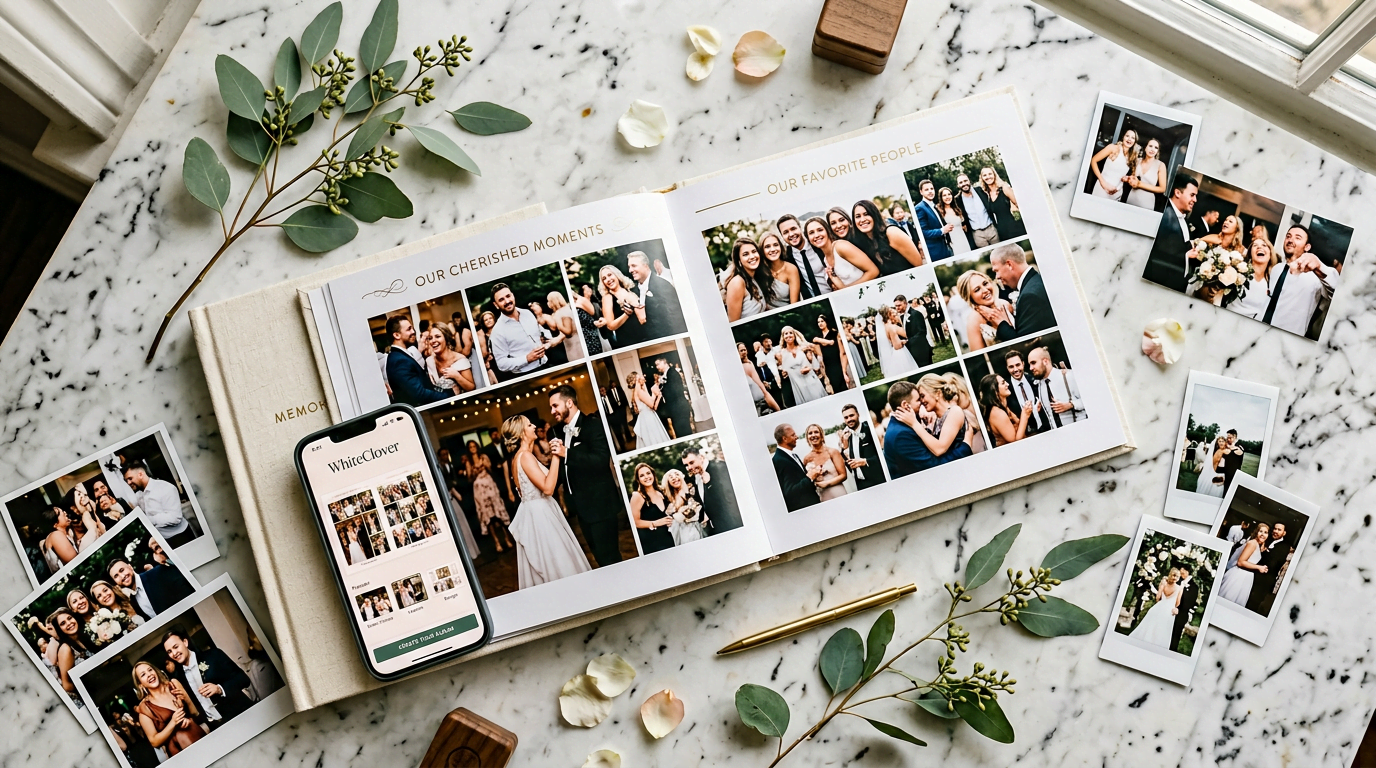
Your guests captured hundreds of photos on your wedding day: the candid laugh during the best man's speech, the kids sneaking cake, the golden-hour moment on the terrace that even the photographer missed. But a week later, those images sit in a ZIP folder or scattered across group chats nobody will revisit. A digital wedding album bridges the gap between a pile of files and a designed keepsake you'll actually open again. WhiteClover's wedding album editor lets you curate photos into a polished PDF album, an interactive HTML album with 3D page-flip and micro-animations, or a cinematic video slideshow, all with a Figma-like editor that gives you full creative control over every image and element. The HTML album editor even supports embedded video, so you can mix photos and clips in the same interactive keepsake. You can use photos captured by guests through the Experience App, or upload your own from any source, the album maker works as a standalone tool too.
Plan Your Event
One platform for every occasion: weddings, baptisms, corporate events and private parties.
Why Guest Photos Deserve More Than a ZIP Download
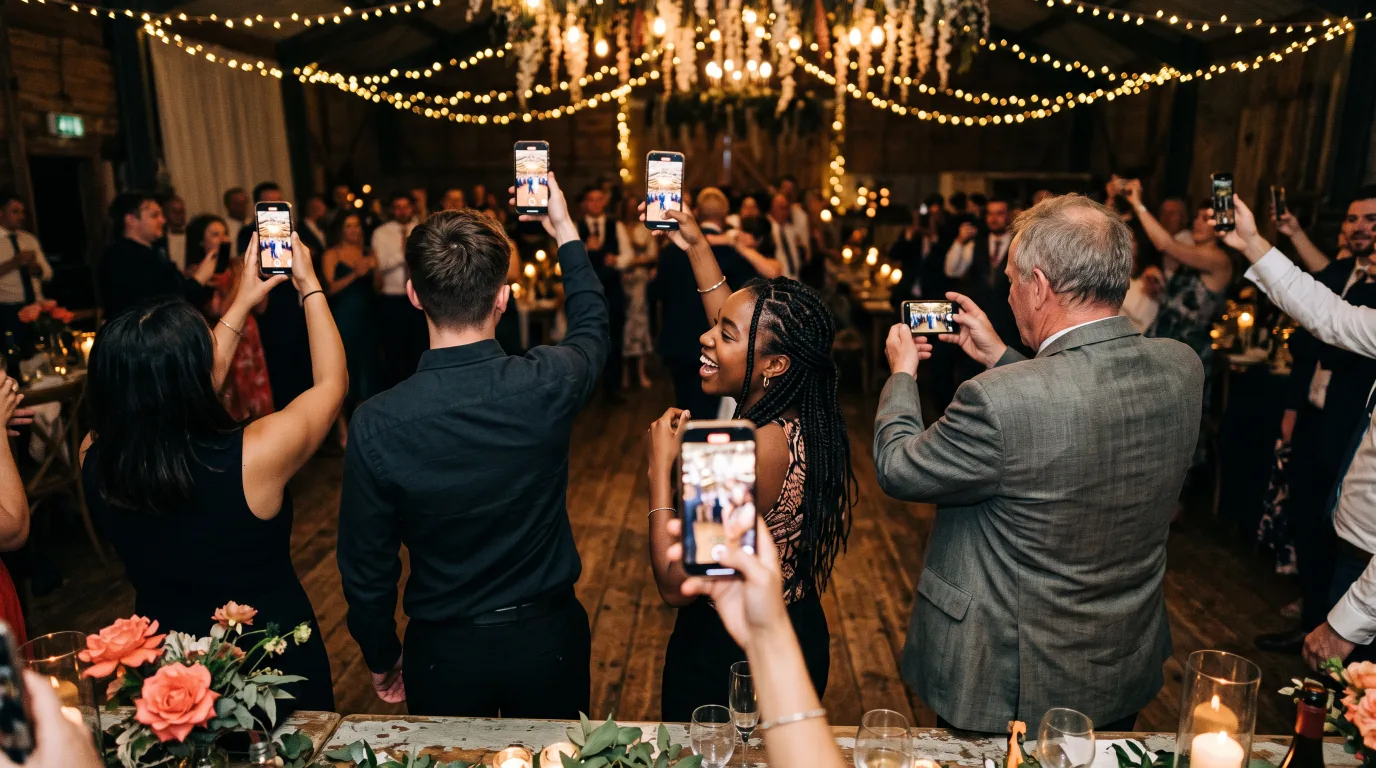
Professional photographers deliver stunning, curated images, but they only capture one perspective. Guest photos tell a different story: the table that erupted when the flower girl started dancing, your grandmother's quiet smile, the selfie your university friends took at midnight. These are often the moments that make you cry years later.
The trouble is, raw files don't carry emotion. A folder labelled "Wedding_Photos_Final" isn't something you curl up with on your anniversary. A designed album: with layouts, covers, and a narrative flow, transforms those same images into something you'll treasure and share.
Pro tip: Don't wait months to curate your album. The memories are freshest in the first few weeks, and you'll find it far easier to select favourites while the feelings are still vivid.
How the WYSIWYG Album Editor Works
WhiteClover's album editor lives inside your experience app dashboard, or you can start from scratch by uploading your own photos directly. The process is straightforward:
1. Select Your Photos: Or Upload Your Own
Browse every image your guests uploaded and pick the ones that belong in your album. Filter by date, by guest, or by the "Photos of You" face-detection feature to find shots where specific people appear. Don't have guest photos? No problem: you can upload your own images from your photographer, your phone, or any source. The album maker works as a fully standalone tool.
2. Choose a Template and Layout Mode
Pick one of six design templates (more on those below). Then choose your layout approach: structured mode offers preset grid layouts for each page (full-bleed spreads, grids, single-image pages, collages) that you can mix and match. Freeform mode removes all constraints: drag and drop images, text, shapes, and guest comments anywhere on the canvas with full rotation and resize control.
3. Edit Images Like in Figma
Every image sits inside a frame, just like in Figma. Double-click any photo to enter edit mode, then crop, pan, zoom, and rotate within the frame. Use the toolbar for quick alignment, Fill, Fit, or Center, or the zoom slider for precise scaling. The image always fills its frame cleanly, so your printed album will look exactly like the preview.
4. Design Your Cover
The cover page is a full freeform canvas. Choose a background image, position the title and subtitle text anywhere, add shapes or decorative elements: all with drag handles for moving, rotating, and resizing. The typography and colour palette follow your chosen template.
5. Save Drafts and Collaborate
Every change is auto-saved as a draft. Come back later from the Drafts tab to resume editing, start a new version, or delete old drafts. If you're planning together, the editor supports live multi-host collaboration: both partners (or a wedding planner) can curate simultaneously, seeing each other's changes in real time.
6. Review, Reorder, and Export
Preview the final album, drag and drop pages into your preferred order, and export in your chosen format. The editor displays bleed and safe-zone guides so your printed album matches the on-screen preview exactly.
Pro tip: Assign sections to each host, one handles the ceremony photos, the other takes the reception. Collaboration and draft management mean neither of you is waiting on the other to finish a section.
Six Design Templates for Every Aesthetic
| Template | Mood | Best For |
| Aegean | Mediterranean warmth, soft blues and terracotta | Destination weddings, seaside venues, Greek island celebrations |
| Editorial | Magazine-style, bold typography, clean grids | Modern city weddings, fashion-forward couples |
| Film | Nostalgic grain, warm tones, vintage borders | Rustic venues, golden-hour photography, retro aesthetics |
| Minimal | Generous white space, understated elegance | Intimate weddings, couples who prefer photos to speak for themselves |
| Botanical | Illustrated foliage, soft greens, organic textures | Garden weddings, countryside estates, spring and summer celebrations |
| Luxe | Dark backgrounds, gold accents, dramatic contrast | Evening receptions, ballroom weddings, glamorous affairs |
Every template adapts to the number of photos you've selected, so you won't end up with awkward blank pages or overcrowded spreads.
Beyond Photos: Comments, Reactions, and Custom Elements
Your album isn't limited to images. The editor sidebar lets you add:
- Guest comments: Pull in comments from guest posts and place them as styled text elements alongside the photos they belong to. Choose which comments to feature and how many to show per image.
- Reactions summary: Display reaction counts (hearts, cheers, laughs) as visual elements tied to specific photos.
- Text elements: Add captions, quotes, or personal notes with custom font families and sizes. Each text element can be rotated, resized, and positioned freely in freeform mode.
- Shapes: Decorative rectangles, circles, and lines to frame content or add visual structure.
These elements turn a simple photo album into a storytelling keepsake that captures not just the images but the emotions your guests shared.
Standalone Album Maker: No Experience App Required
While WhiteClover's album editor integrates seamlessly with the Experience App for guest-uploaded content, it also works as a completely independent tool. Upload photos from your professional photographer, your phone gallery, a shared Google Drive, or any other source, and start building your digital or printed wedding album immediately.
This makes WhiteClover's album maker useful for:
- Couples who only want an album without the full event platform
- Wedding planners creating albums for clients from delivered photographer files
- Anyone wanting to design a custom photo book with a professional-grade, browser-based editor
Export Formats Explained
PDF Album
A high-resolution 300 DPI PDF ready for screen viewing, home printing, or professional print-on-demand. Each page is laid out at print quality with bleed and safe-zone guides, so your printed album matches the editor preview exactly. Choose from six curated design templates (Aegean, Editorial, Film, Minimal, Botanical, Luxe) or design freeform. The PDF editor supports photos only, for video, use the HTML album.
Interactive HTML Album: The Premium Digital Keepsake
The interactive HTML album is the standout format. It's a self-contained digital album you share via a single link, no app download required. What makes it special:
- 3D page-flip: Pages turn with realistic 3D perspective, like flipping through a real book
- 19 entrance animations: Fade in, slide up, zoom, bounce, blur, clip reveal, typewriter, and more, each section can have a different entrance effect
- 5 hover effects: Zoom, glow, lift, tilt 3D, and more when visitors hover over images
- Particle overlays: Hearts, confetti, sparkles, and petals float across sections for emotional impact
- Video support: Unlike PDF, the HTML album fully supports embedded video with autoplay, loop, and player controls
- 3 view modes: Book (3D page-flip), Scroll (snap sections), or Slides (horizontal swipe)
- 5 transition styles: Page flip 3D, slide, fade, parallax, and zoom
You design the HTML album with its own Figma-like editor, starting from one of three premium templates: Elegant Memoir (gold sparkles, book view), Vivid Stories (confetti, slide view), or Romantic Garden (petals, scroll view), or a blank canvas. The editor supports 12 section template types, from hero images and gallery grids to video features and timelines. Real-time collaboration lets multiple hosts design together, and every change auto-saves.
Video Slideshow
A cinematic MP4 video of your wedding photos, set to music, with professional transitions. Choose from fade, dissolve, wipe, zoom, slide, and blur effects. Add Ken Burns pan-and-zoom, auto-generated title cards, and music overlay. Render at 720p, 1080p, or 4K resolution, supports up to 500 photos. Perfect for sharing on social media, playing at events, or keeping as a standalone keepsake.
Pro tip: Export all three formats from the same session. The PDF goes to the parents, the interactive HTML album link goes to the group chat (they'll love the page-flip), and the video goes on your private feed.
Pricing Tiers at a Glance
WhiteClover offers tiered access so you choose only what you need:
- Free: Download all guest photos as a ZIP archive.
- Starter (€29): ZIP + designed PDF album with your chosen template and 6 months hosting.
- Premium (€69): ZIP + PDF + interactive HTML album with 3D page-flip, animations, and video support + cinematic video slideshow with configurable transitions and music + 12 months hosting.
- Print Bundle (€119): Everything above + professionally printed hardcover album delivered to your door.
- Wedding Set (€199): Everything above + layflat album + parent albums, the complete printed set + 24 months hosting.
You can also order a printed version of any specific PDF export directly from the editor, pricing is calculated per page (€19.99 base + €0.79/page + €9.99 flat shipping). No design software, no third-party uploads, no waiting weeks for a designer.
A Destination Wedding in Santorini: From 387 Photos to a 40-Page Album
When Elena and James planned their destination wedding on the Santorini caldera, they knew their 120 guests: flying in from London, Athens, and Sydney, would capture moments the photographer couldn't. By the end of the night, WhiteClover's guest photo gallery held 387 uploads.
Two weeks later, they opened the album editor together from different cities (Elena in London, James in Athens, live collaboration made it seamless). They selected 96 favourites, chose the Aegean template for its Mediterranean palette, and arranged 40 pages in under an hour. The cover read simply: "Elena & James · Santorini · June 2026."
They exported three formats. The PDF went to James's grandmother in Athens, who printed and framed six pages. The HTML flipbook link was shared in the family group chat and opened 74 times in the first week. The video slideshow played at their one-month anniversary dinner.
What surprised them most? The album told a richer story than the professional photographer's set alone. Guest angles, candid reactions, behind-the-scenes chaos: it was all there, designed and sequenced, not just dumped in a folder.
Most couples assume the photographer's album is the definitive record. But professional sets typically include 80 to 120 images from a single artistic viewpoint. Guest photos fill the gaps, and with a platform-generated album, you don't have to choose between cheap-and-ugly DIY or expensive-and-slow professional design. You get template-driven beauty in 30 minutes, because the photos are already in your gallery.
Conclusion
Curating your wedding photos shouldn't require a design degree or a four-figure budget. The moments your guests captured: the unscripted, emotional, gloriously imperfect ones, deserve more than a forgotten ZIP file. With a Figma-like album editor that supports crop, pan, zoom, and rotate within frames, freeform and structured layouts, six PDF design templates, three interactive HTML album presets with 3D page-flip and micro-animations, draft management, and three export formats, turning those memories into a designed digital or printed album is now part of the same platform where your guests uploaded them, or works as a standalone tool with your own uploaded photos.
The interactive HTML album takes this further by supporting embedded video alongside photos, 19 different entrance animations, particle overlays (hearts, confetti, sparkles), and three view modes, so your digital keepsake feels as alive as the day itself. The cinematic video slideshow adds another dimension: choose from multiple transition styles, add music, generate title cards, and render at up to 4K resolution.
Managing hundreds of wedding photos can quickly become overwhelming, especially when memories are scattered across devices, chats, and cloud folders. WhiteClover's album editor transforms a chaotic photo collection into a designed, shareable keepsake, without extra apps or design skills. Add guest comments and reactions as design elements, collaborate with your partner in real time, and export a print-ready PDF with bleed guides that ensures your printed album matches the preview exactly. Or share an interactive HTML album link that your family can open on any device and browse with stunning page-flip animations.
Discover how WhiteClover's experience app simplifies every step, from guest photo collection to designed album export. Or start directly with the wedding album maker by uploading your own photos. Designed for modern couples who want their wedding story told beautifully and effortlessly, WhiteClover lets you curate, design, and share, all in one place. Start your journey to stress-free wedding memories today at WhiteClover and turn your photos into a keepsake you'll cherish for years.
Frequently Asked Questions
Do I need design experience to use the album editor?
Not at all. The six templates handle typography, colour palettes, and page layouts for you. You simply select photos, choose a template, and drag pages into order. The editor does the heavy lifting.
Can multiple people work on the album at the same time?
Yes. The editor supports live multi-host collaboration. Both partners, or a wedding planner, can select photos, rearrange pages, and customise the cover simultaneously. Changes appear in real time.
What happens to my photos if I only use the free tier?
Your guest-uploaded photos remain in your WhiteClover gallery regardless of tier. The free tier lets you download everything as a ZIP. Upgrading unlocks the designed album formats (PDF, HTML flipbook, video slideshow).
Can I print the PDF album at home or through a print service?
Yes. The PDF exports at high resolution, suitable for home printing or uploading to any print-on-demand service. The Print Bundle tier also connects you with professional binding and print fulfilment.
How long does it take to create an album?
A 30 to 50 page album is usually an evening's work rather than a project. If you've already favourited photos in your gallery, there is less to choose from and it goes faster still. Collaboration helps too: divide the sections between two hosts and neither of you waits on the other.
Can I use the album editor without the Experience App?
Yes. The album maker works as a standalone tool. Upload your own photos from any source: your photographer, your phone, a shared drive, and design a complete digital or printed album without ever using the Experience App.
What is the difference between freeform and structured mode?
Structured mode uses preset grid layouts per page: choose from single image, two-column, collage, and more. Freeform mode removes all constraints, letting you position images, text, shapes, and guest comments anywhere on the canvas with full rotation and resize.
Can I save my album and come back later?
Yes. Every change is auto-saved as a draft. The Drafts tab shows all your saved album versions so you can resume editing, start a new version, or delete old drafts at any time.
What image editing tools are available?
Every image sits inside a frame, similar to Figma. Double-click to enter edit mode, then drag to pan, use the zoom slider or scroll wheel to scale, and click Fill, Fit, or Center for quick alignment. You can also rotate images and elements freely in freeform mode.
Recommended Reading
- Wedding Photo Album Maker, Create a digital or printed wedding album with the Figma-like editor, freeform layouts, and print-ready export.
- Digital Wedding Guestbook & Experience App, How guest photo collection and guestbook features work together.
- Wedding QR Code & Anonymous Login, Let guests upload photos without creating an account.
- Which Event Planning Apps Offer Photo Sharing?, Compare platforms that support guest photo uploads.
- How to Find Photos of You From a Wedding, Use face detection to discover every photo where you appear.
- Best Wedding Photo Sharing Apps 2026, A roundup of the top platforms for collecting and sharing wedding photos.
Written by
Marios P
Part of the WhiteClover team, helping couples and hosts plan unforgettable events with modern digital tools. Passionate about simplifying the celebration planning journey.
You Might Also Like
 Digital Tools
Best Wedding Photo Sharing Apps in 2026 (Compared)
Thirteen guest photo apps compared on price, face matching, whether guests need an account, and how long the gallery lives. Checked 25 August 2026.
 Digital Tools
Digital Wedding Guestbook & Experience App
Discover how WhiteClover's experience and photos app doubles as a digital guestbook.
 Guest Experience
How to Find Photos of You From a Wedding
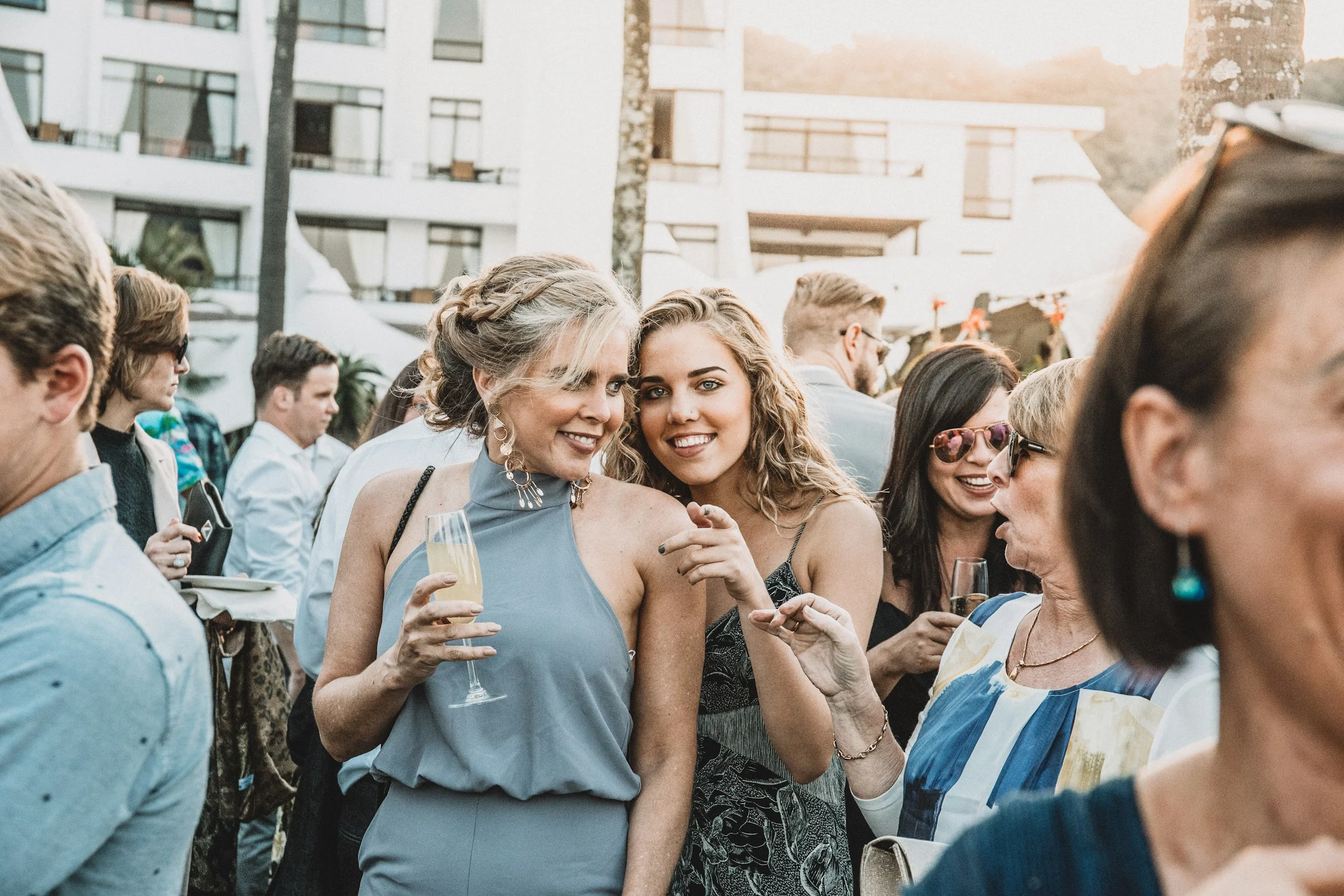
Find photos of you from a wedding with "Photos of You": see every photo where you appear, sorted by date.