Advertisement
 Sponsored
The planning disconnect: Why spreadsheets fail
Wedding planning involves juggling lots of things at once - tracking costs, managing vendor relationships, etc. The majority of couples will feel this weight immediately. Ninety-six percent of couples experience some level of stress throughout the process; budget management and vendor coordination are two of the biggest pain points.
The traditional wedding planning method involves using separate tools for each part of the planning process: a spreadsheet to track budgets, an email inbox to manage vendors and a separate note-taking app to store inspiration. Separating these tools into disconnected systems creates many opportunities for error. For example, you may receive an updated quote from a vendor via email but forget to update the information in your spreadsheet. Or you might take a total from the spreadsheet and manually calculate it using the formula you created, but your formula could break.
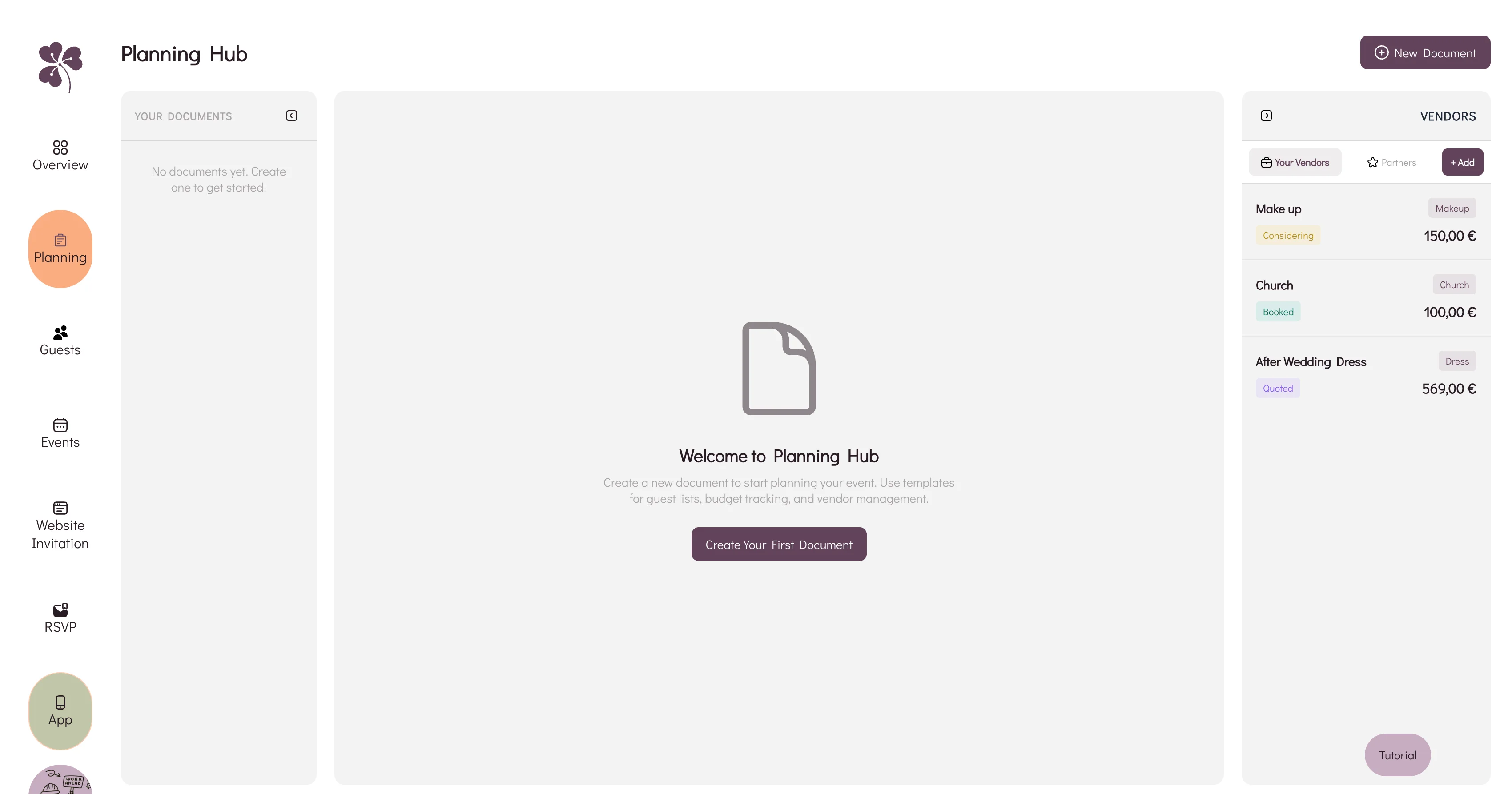
WhiteClover’s Planning Hub addresses this structural issue by providing a combination of a document editor's flexibility with real-time calculations from a spreadsheet. This makes it possible to create a single workspace for planning a wedding. In this way, your planning notes, financial information and vendor contacts are all in one place instead of being disconnected.
Plan Your Event
One platform for every occasion: weddings, baptisms, corporate events and private parties.
Essential Functions of the Planning Hub
The core of the Planning Hub is Smart Documents. These documents are rich text documents with the ability to include embedded tables, live calculations, and vendor integrations.
Real Time Budget Tracking
Spreadsheets are typically updated manually, whereas the Planning Hub provides automated real time tracking through Formula Driven Tables. The user is able to add three columns to each table to record Estimated, Actual, and Paid expense amounts. The system will automatically calculate Remaining amounts based on entries made into the corresponding Estimated, Actual, and Paid columns.
Example: A Venue has a budget of €5,000 and a paid deposit of €2,400. The table automatically calculates the remaining balance of €2,600. A Smart Formula block located at the top of the Smart Document provides the total owed of all categories combined, rather than having to scroll through multiple rows of data.
Integrated Vendor Management
Duplicating data can cause major mistakes when planning a wedding. Therefore, the Planning Hub allows you to connect your document directly to your Vendor database.
When you select the cell in the Vendor column, a drop-down menu appears. You can then choose a vendor, and the vendor's information will automatically fill in the quote amount, phone number, email address, etc., in the row. If you change the vendor's phone number in the table, the new phone number will sync back to your master vendor list. This means that your contact information will always be accurate in all your Planning Documents.
Intelligent Templates and Column Types
You don’t need to create your own systems. There are already built templates that can be utilized for most common use cases.
Budget Planning: Pre-configured categories and sum formulas come with Budget Templates.
Guest Estimation: You can track the probability of attendance of guests and the "Plus One's."
The columns also use intelligent typing. The Number Column will only accept currency inputs. The Percent Column will format the probability as a percentage automatically upon entry into the column. The Vendor column links to your vendor database and prevents formatting errors commonly made with conventional spreadsheets.
Using the Planning Hub
This is how to establish a base of operations for planning your wedding.
Step 1: Create document
To create a document in planning hub, go to dashboard, press "new document," then press "budget planning" template. This automatically creates a table with category headings such as venue, catering, etc.
Step 2: Enter financial data
Fill out the estimated budget for every category. Once you receive the actual quotes, you will place them in "actual" column. When you pay your deposits put that in the "paid" column, and the "remaining" column will automatically calcualate according to the formulas that are already in existance.
Step 3: Generate connection to vendors
Simply click on any cell under the "Vendor" header of the Budget table and either add/search for an existing vendor name or select from among those in the WhiteClover partner directory, the system will automatically connect the vendor profile with that specific budget line item of your choice.
Step 4: Create summary block
With your cursor positioned above the Budget Table, type "/" which will show the command menu, select "SmartFormula" then select "Sum of Column", select the Remaining column of the budget table. This will create a constantly updated total at the header of your document.
Step 5: Share access
Grant access to your partner, wedding planner, or family members. You control permissions, allowing some users to edit data while others have view-only access. All changes sync in real time across devices.
Comparing planning tools
When couples decide what tool to use, they predominantly use either spreadsheets (generic), or wedding planning applications (rigid). The Planning Hub bridges the gap between these tools.
Google Sheets allows users to create calculations, however, it does not have the same capabilities as wedding planning-specific applications. Wedding apps like The Knot and Zola allow users to create to-do lists and checklists for their weddings but do not allow users to create a custom formula for calculating their wedding expenses. The Planning Hub combines both the ability to create a custom formula and use a template for wedding planning.
With generic spreadsheets, you will need to manually enter all your vendor information into the spreadsheet to track expenses. The competitor wedding applications have separated vendor lists from their budget tracking tools. With The Planning Hub, when you add vendors, they will automatically sync with your budget lines.
With generic spreadsheets, you will not have access to any form of text editor. Note-taking applications will never allow you to do the calculations you want. With The Planning Hub, you will be able to view your contracts, note-taking and calculation tables all in one place.
Tips for maximizing the system
To improve productivity using The Hub, use standardized terms across all documents for categories. That way, you will be able to easily filter and report on them later in the process.
You should also update The Hub every week on a set day. Updating regularly will maintain the integrity of your “Remaining” balance so that you are less likely to have a surprise in your budget at the end of your event.
Whenever a vendor is added to your budget table (i.e., in the WEDDINGS budget table) the system creates a “Vendor” entry in your master list. Take advantage of this feature and build a permanent listing of vendors for post-wedding reviews and referrals.
Using The Planning Hub changes how we think about planning weddings by replacing a disarrayed mess of notes and Excel files with one comprehensive tool that integrates all of your planning data, budgeting data, and vendor information in one location.
Start Planning Smarter Today
Wedding planning doesn't have to be overwhelming. With WhiteClover's Planning Hub, you get:
- 📊 Real-time budget tracking with automatic calculations
- 👥 Integrated vendor management with two-way sync
- 📝 Flexible document editing for any planning need
- 🤝 Partner vendor access to find trusted professionals
- 📱 Mobile-friendly design for planning on the go
- 💾 Auto-save so you never lose your work
Ready to transform your wedding planning experience?
Get Started with Planning Hub for Free →
WhiteClover is a comprehensive wedding planning platform helping couples organize their perfect day. From digital invitations and RSVP management to guest lists and now Planning Hub, we're with you every step of the way.
Related Articles:
Written by
Nicole V.
Part of the WhiteClover team, helping couples and hosts plan unforgettable events with modern digital tools. Passionate about simplifying the celebration planning journey.
You Might Also Like
 Budget & Tools
Registry Office Wedding Cost UK: The £167.50 Minimum
What a registry office wedding costs in the UK in 2026: the £167.50 legal minimum in England and Wales, £155 in Scotland, real council prices, party ideas.
 Wedding Planning
Greece vs Cyprus Wedding: Paperwork and Fees
Getting married in Cyprus or Greece? Waiting days, official fees, language and documents side by side, from the governments' own pages, plus a guest view.
 Guest Experience
Destination Wedding: Who Pays for Guest Rooms?
Should you pay for guests' accommodation at a destination wedding? Three models, what tends to bother guests, and lines to copy for your website.