
Advertisement
 Sponsored
Spreadsheets are how most couples start planning a wedding, and for good reason. They are free, familiar, easy to share, and forgiving when you change your mind for the third time about the favours. But "use a spreadsheet" is not a plan. Without the right templates, you end up with one giant tab where the venue quote, your aunt's phone number, and a vague guess about flowers all share the same coffee-stained corner.
This is a catalogue of the eight wedding planning spreadsheets that actually carry their weight during real planning. Each has a single job, a clear set of column headers, a few formula tips, and an honest note about when it stops serving you. We will also be specific about the graduation moment: the day a spreadsheet stops being helpful and starts being a part-time job. Most couples reach it somewhere between months 4 and 8 of planning. When it happens, you move the high-traffic tabs (RSVP, seating, vendor coordination) to a dedicated platform and keep the rest in Sheets. You do not throw spreadsheets away. You just need to know which ones will outgrow themselves.
Plan Your Event
One platform for every occasion: weddings, baptisms, corporate events and private parties.
Why One Giant Spreadsheet Doesn't Work
The most common spreadsheet mistake is not choosing Excel over Google Sheets. It is mixing forecasts, actuals, contacts, and tasks in the same place. By month four of planning, you cannot tell what you have spent, who confirmed, or which vendor is waiting on a deposit, because all of that lives in one cell with the wrong colour.
The fix is structural. Build one workbook. Give each tab a single owner and a single purpose. Pull totals into a small dashboard so you do not have to read every cell to know where you stand. If you already have a working budget file, do not start over, just split it into the focused templates below. (For a deeper look at how to organise a single budget file properly, see this guide to wedding budget spreadsheets.)
The next eight sections each describe one template: its purpose, the columns that earn their keep, a couple of formula tips, and the signal that it is time to move on.
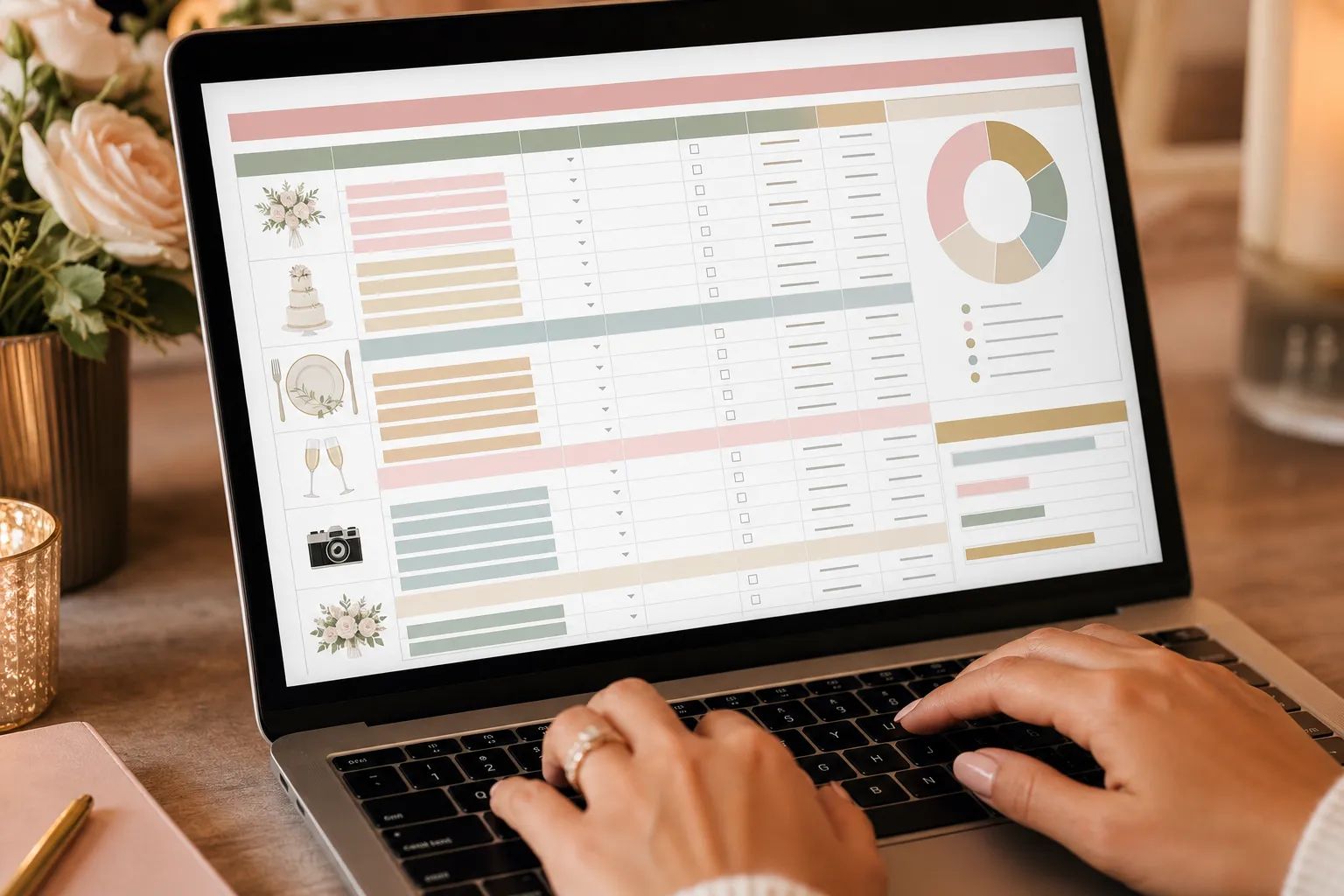
Template 1: Master Budget Tracker
Purpose: Know what you planned, what you committed to, what you have paid, and what is left, at any moment.
Columns: Category · Item · Estimated cost · Quoted cost · Deposit paid · Balance remaining · Due date · Status · Owner · Notes
Formula tips: Use =SUMIF(Category, "Catering", Quoted) on a summary tab for category totals. Add =IF(TODAY()>Due_date, "OVERDUE", "") to flag late payments automatically. Use =Quoted-Deposit_paid for live balances. Keep one cell at the top for your total budget and another for "buffer remaining", that is the number that ages you in real time.
Pro tip: Never store your dream budget and real budget in the same cell. Keep one row labelled "target" and one row labelled "actual committed". That tiny separation prevents at least three arguments.
Graduate when: You are juggling more than 12 vendors with staggered payments and the variance column gets edited weekly. The spreadsheet has stopped being a budget and started being a job.
Template 2: Guest List with RSVP
If you would rather not build this one from scratch, the free wedding guest list template is an ungated download in Excel and CSV with these columns already in place, plus RSVP, dietary, address, table and notes. Use the Excel file if your guest list includes international phone numbers: a CSV strips the leading plus sign, which leaves a number that looks almost right and does not work.
Purpose: A single source of truth for who is invited, who is coming, dietary needs, and where they sit.
Columns: Guest name · Group (family/friends/work) · Side · Address · Email · Phone · Save-the-Date sent · Invite sent · RSVP status · Plus-one · Meal choice · Dietary notes · Accommodation needed · Table number
Formula tips: =COUNTIF(RSVP_status, "Yes") for live headcount. Use Data Validation dropdowns for status and meal choice, typos break filters. Conditional formatting on "No response" past your deadline highlights who needs a friendly chase.
Graduate when: Guests start replying across email, SMS, paper, and WhatsApp simultaneously and three family members are editing the sheet at once. A spreadsheet handles 40 RSVPs cleanly and 140 painfully. (For the deeper structure of a shared guest list in a workbook, see this guide on organising wedding plans in Google Sheets.)
Template 3: Vendor Contact and Payment Schedule
Purpose: Every vendor, every contract, every payment date, every deposit receipt, one row each.
Columns: Vendor name · Service · Primary contact · Phone · Email · Contract signed (Y/N) · Currency · Deposit amount · Deposit date · Balance · Balance due date · Payment method · Receipt link · Notes
Formula tips: =TODAY()-Deposit_date to track how long ago the deposit went out. Add a separate "Upcoming payments (next 30 days)" tab that filters this one, that is the view you actually need at 9pm on a Sunday. For couples paying across currencies, put a single "reference rate" cell at the top of the workbook and convert balances against it.
Graduate when: You start missing payment dates because the reminder lives only in your head and you forgot to open the sheet that week.
Template 4: Wedding-Day Timeline
Purpose: A minute-by-minute schedule for the day itself, shared with the coordinator, photographer, and family.
Columns: Time · Duration · Activity · Location · Who is involved · Vendor responsible · Notes/cues
Formula tips: Use =A2+TIME(0,30,0) to auto-calculate next start times when you add a 30-minute buffer. Colour-code rows by vendor (photographer in coral, DJ in sage) so a single glance tells everyone who is on next. Keep a "buffer" row of 10 minutes between every major moment: first looks, speeches, cake, and treat it as untouchable.
Graduate when: The timeline needs to be on three phones, two tablets, and one paper printout that is already smudged, and any change needs to ripple to all of them at once. Pair the spreadsheet with a wedding timeline tool the moment edits start arriving from more than one person.
Template 5: Seating Chart Matrix
Purpose: Map guests to tables, track table capacity, flag conflicts before they cost you a friendship.
Columns (row per guest): Guest name · Group · Preferred table · Do-not-seat-with · Accessibility · Final table
Companion tab (table capacity): Table number · Shape · Capacity · Confirmed seats · Remaining seats
Formula tips: =COUNTIF(Final_table, "T5") to count seats per table. Conditional formatting on "Remaining seats < 0" so you do not quietly assign nine people to a table of eight. Sort the guest tab by Final table to spot conflicts side-by-side.
Graduate when: You hit 80+ guests and start needing visual drag-and-drop. A matrix works for 40 guests; it is painful at 100 and impossible at 150.
Template 6: Honeymoon Itinerary
Purpose: Flights, hotels, transfers, activities, confirmation numbers, one tab, one trip.
Columns: Date · Time · Type (flight/hotel/transfer/activity) · Description · Confirmation # · Cost · Currency · Notes/links
Formula tips: =SUMIFS(Cost, Currency, "EUR") to total spend per currency for couples paying in both euros and dollars. A single "reference rate" cell at the top lets one FX update convert the whole sheet. Add a "documents needed" column for visa requirements, vaccination dates, and travel insurance reference numbers.
Graduate when: You do not, this template stays useful all the way through the trip and into the photo-organising afterglow. Just keep it offline-accessible.
Template 7: Gift and Thank-You Tracker
Purpose: Track who gave what so thank-you notes do not go out in October to people who sent a gift in July.
Columns: Guest name · Gift received · Gift date · Gift value (optional) · Thank-you sent (Y/N) · Thank-you date · Notes
Formula tips: =COUNTIF(Thank_you_sent, "No") shows your remaining backlog. Sort by Gift date ascending so the oldest unsent notes float to the top, that is the order you should write them in. If you have a registry, paste the link into "Notes" so the thank-you can reference the exact item.
Graduate when: You finish the thank-you notes. Then archive the sheet. It is done its job.
Template 8: Tasks by Month
Purpose: A rolling 12-month checklist of planning tasks, owners, and due dates.
Columns: Month · Task · Owner · Status · Due date · Dependencies · Notes
Formula tips: =COUNTIFS(Status, "Done", Month, "March") for monthly completion rates. Conditional formatting on "Due date < TODAY() AND Status ≠ Done" highlights overdue items in red. Group tasks by Owner once a fortnight so each partner sees their own list, not the combined wall of work.
Graduate when: You want push notifications, mobile sync, and shared visibility with a planner. A step-by-step wedding budget creation and task system in one platform is the natural next step.
When to Graduate From Spreadsheet to Platform
You will know it is time when one or more of these happens, and they tend to happen together.
- Two people overwrite each other's edits in the same week. Version control in Sheets is fine for one editor and painful for three.
- You miss a vendor payment because the reminder existed only in the spreadsheet you did not open.
- RSVPs arrive across five channels: email, SMS, paper, WhatsApp, Instagram DM, and the sheet cannot catch up.
- Family members ask "what is the latest budget?" and you realise three versions of the file are circulating.
- The wedding seating chart needs visual drag-and-drop and the matrix cannot keep up.
When two of these are true, migrate the high-traffic tabs. Keep the budget, honeymoon, and gift tracker in Sheets if you like them. Move RSVPs, seating, vendor coordination, and the day-of timeline into a planning hub with budget tracker and vendor management. You will sleep better, and so will your maid of honour.
Frequently Asked Questions
Should I use Excel or Google Sheets for wedding planning?
Google Sheets, almost always. You will want to share with a partner, a planner, or a parent, and Sheets handles real-time collaboration without paid licences or version-named files. Excel is excellent for offline analysis but slower for shared planning. If you already love Excel, use it for the budget and switch to Sheets for the guest list and seating chart.
How early should I build my wedding spreadsheets?
Start with the budget and guest list as soon as you set a date, usually 10 to 12 months out. Add the vendor tracker and tasks-by-month tabs at 9 months. Build the timeline and seating matrix at 4 months. The honeymoon itinerary lands around month 6. The gift tracker comes online the moment the first present arrives, which is often earlier than you expect.
What is the most common spreadsheet mistake couples make?
Mixing estimates, committed amounts, and paid amounts in a single column. You lose visibility into your real position because "£8,000" might mean "we hope" or "we owe" or "we paid". Always keep three separate columns: estimated, committed, paid, so the variance is visible at a glance.
Can a spreadsheet replace a planning app entirely?
For budget, tasks, gifts, and honeymoon, yes, for most weddings. For RSVPs, seating, and the day-of timeline, no, once you pass roughly 60 guests across multiple communication channels. A spreadsheet is the right place to start. It is a fine place to keep some things forever. It is a poor place to manage 120 RSVPs arriving over six channels in three weeks.
Bring It All Together
Wedding spreadsheets can carry you a long way, until the day they cannot, and that day usually arrives quietly. A missed payment. Two conflicting edits. An aunt who never received the RSVP link because it lived inside a tab she could not open on her phone. The spreadsheets are not failing; they were never built to do the job of a planning platform. They are the first draft of your wedding logistics, not the final draft.
If the templates above are starting to feel heavy: or if you would rather skip straight to a tool built for budget, vendors, tasks, and guest workflows in one place, explore the WhiteClover Planning Hub. Designed for modern couples who want to ditch the spreadsheet chaos and keep the parts of planning they enjoy, WhiteClover takes the same column-by-column thinking you have already mastered and gives it real-time RSVPs, vendor reminders, and a shared workspace that does not break when three people edit at once. Start your journey to stress-free wedding planning today at WhiteClover, and keep the spreadsheets you love for the things they are still best at.
Written by
Ioanna V.
Part of the WhiteClover team, helping couples and hosts plan unforgettable events with modern digital tools. Passionate about simplifying the celebration planning journey.
You Might Also Like
 Budget & Tools
Manage Your Wedding Budget with Spreadsheets
Build a wedding budget spreadsheet that tracks estimates, deposits, balances, owners, due dates and variance, with shared edits and no chaos.
 Digital Tools
Wedding Plans in Google Sheets
Learn how to organise wedding plans in Google Sheets with tabs, formulas, sharing rules, guest lists, budgets, vendors, timelines, and RSVP limits.
 Budget & Tools
Step-by-Step Wedding Budget Guide
Set your priorities, split the total across categories, then track what you actually spend. Five steps to a wedding budget you can keep adjusting.